Single Sign-On FAQs
See our Frequently Asked Questions (FAQs) below if you're having issues with your
Single sign-on (SSO) account.
Need to make a password change?
- Go to rsccd.edu/changepassword to create a new password.
- Go to rsccd.edu/resetpassword to reset your password or retrieve your username.
Can't find what you're looking for here?
- If you need help with Multi-factor authentication, see our Multi-Factor Authentication (MFA) FAQs.
- If you're getting locked out of your account, please see our Account Lockout Troubleshooting guide.
- If you're looking for help with your password, see our Password Troubleshooting FAQs.
What is Single Sign-On (SSO)? How will SSO benefit me?
Single Sign-On (SSO) means you will only need one email address and one password to access most of your District or College-related resources. You will not need to store (or remember) different login information for different accounts.
I am receiving an error saying "Incorrect user ID or password. Type the correct user ID and password, and try again."
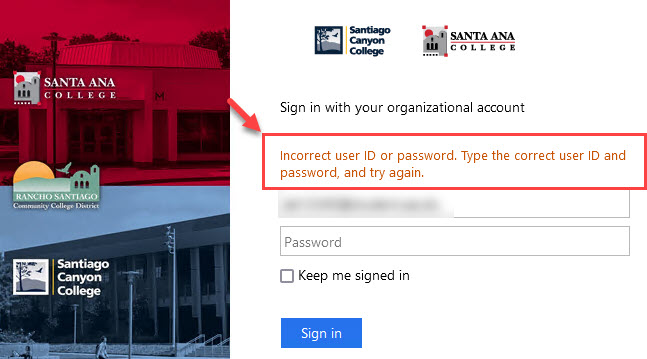
First, let's make sure we have your correct username.
- Go to the Password Reset page and use “Retrieve User Name." This will show you your District email address, which is also your Single Sign-on username.
- If you're a student, your username might look like this: ab12345@student.sac.edu or ab12345@student.sccollege.edu. Please note that sometimes, students get a "Welcome" email from the school, and the username in that email might end with @student.sac.edu or @student.sccollege.edu. If one doesn't work, try the other.
- If you're a teacher or staff member, your username is your employee email address. It might look like this: LastName_FirstName@sac.edu, LastName_FirstName@sccollege.edu or LastName_FirstName@rsccd.edu.
Next, you might need to reset your password.
- Go to the Password Reset page and use "Reset Password" to reset your password.
- After you've reset your password, you should get an email at your personal email address. This will come from HelpDesk@rsccd.edu, and the subject line will say "RSCCD Password-Reset." If you can't find this email, please look in your Junk or Spam folder.
- One thing to remember is that you need to have a personal email address on file with us to get the password reset email. You can check with SAC Admissions & Records or SCC Admissions & Records (if you're a student) or People & Culture / Human Resources (if you're an employee) to make sure they have your correct personal email.
- Students who need help can contact the SAC Student Help Desk or SCC Student Help Desk. Teachers or staff members can contact the ITS Help Desk (Employees Only).
Please also reference our Single sign-on password troubleshooting guide in case you're having trouble with retrieving the username or resetting the password.
New Students
To receive your Single Sign-On username, you first need to apply for enrollment at
the college. Once you've applied, the college will send a "Welcome" email with your
username to the personal email address you provided on your application.
If you haven't applied yet, you can use the following links to do so:
- For Santa Ana College (SAC), go to the Admission to College page.
- For Santiago Canyon College (SCC), click on Apply Now.
If you've already applied but aren't sure about the status of your application or haven't received your username, please reach out to Admissions and Records. You can contact them at the following links:
- For Santa Ana College (SAC), go to SAC Admissions & Records.
- For Santiago Canyon College (SCC), go to SCC Admissions & Records.
If you're a new student and just got your "Welcome" email from Admissions and Records,
but can't log in yet, don't worry. Sometimes, you get this email before your account
is fully set up.
Try waiting for about 2 to 3 hours after you get the "Welcome" email. This gives some extra time for your account to get ready.
If you still can't log in after waiting, please reach out to ITS Help Desk. They can help check what's happening with your account.

To access Outlook and Office 365, you must be an active student who is registered
and enrolled for classes in the current semester.
If you're a newly registered or returning student, it's recommended to wait until
2 weeks before the start of the semester before trying to access these services. For
more detailed information, you can refer to the RSCCD Student Email Instructions.
Please note that if you're inactive for 2 semesters, your student email address will
become inactive and you will lose access to your student mailbox and the ability to
download the Office 365 software suite.
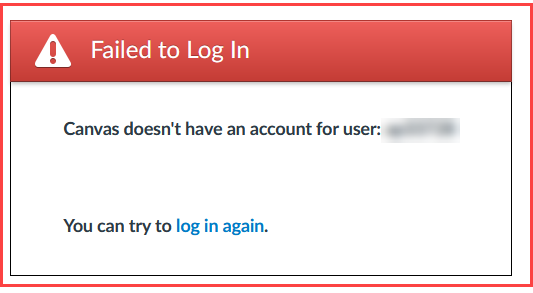
If you're encountering this error when trying to log into Canvas, it usually means
that you're not registered for a class in the current semester, or are still waitlisted.
After registering for a class, there might also be a slight delay before your login
becomes active in Canvas. If this happens, it's recommended to wait a few hours and then try logging into Canvas again.
For further guidance on student planning and class registration using the Self-Service
portal, you can refer to the following guides:
- For Santa Ana College (SAC), go to Student Self-Service
- For Santiago Canyon College (SCC), go to Student Online Education Plan
General Student Questions
The following applications for students use SSO authentication.
If you are a current Santa Ana College (SAC) or Santiago Canyon College (SCC) student, you can register for classes at SAC through Self-Service. You will then be granted a single sign-on username and password you can use to login to our college resources.
If you are enrolling through California Virtual Campus (CVC) from another college, please see the page for CVC-OEI Student Resources. In general, students from other colleges taking CVC courses with SAC or SCC would login using the home campus login credentials.
If you have general questions about the CVC program, please contact Admissions & Records.
- For Santa Ana College (SAC), go to SAC Admissions & Records.
- For Santiago Canyon College (SCC), go to SCC Admissions & Records.
We encourage students to reach out to the Student Help Desk for assistance.
- SAC - Student Help Desk
- SCC - Student Help Desk