Self-Service FAQs
See our Frequently Asked Questions (FAQs) below if you're having issues with Self-Service.
You can access Self-Service at the following links:
- Santa Ana College: sac.edu/selfservice
- Santiago Canyon College: sccollege.edu/self-service
- District Office: rsccd.edu/selfservice
Frequently Asked Questions
Colleague Self-Service is an interactive web application that enables users to view their individual information contained in RSCCD's Colleague databases.
Self-Service has been in use by RSCCD since 2020 and is the successor to WebAdvisor.
You can access Self-Service at the following links:
- Santa Ana College: sac.edu/selfservice
- Santiago Canyon College: sccollege.edu/self-service
- District Office: rsccd.edu/selfservice
Self-Service can also be accessed by clicking on the link at the top of your respective college or District homepage, then using your Single Sign-on (SSO) credentials to login.

Self-Service uses your Single sign-on (SSO) credentials for login.
- If you need a step-by-step guide for Self-Service login, please see our Self-Service – Single Sign-On Login Guide.
- If you're looking for help in general with Single sign-on, see our Single Sign-on (SSO) FAQs.
- If you're looking for help with your password, see our Password Troubleshooting FAQs.
- If you're receiving an error message with an "Activity ID," or "Bad Header - Request Field Too Long (HTTP Error 400)", try to Clear your Web Browser Data (Cache and Cookies).
Resources on Self-Service
- OCDE EIS
- Electronic Direct Deposit Form
- District Safety Report
- Contact ITS (Information Technology Services) Help Desk
- Purchase Parking Permits
- PD Gateway (Professional Development)
- Employee eForms
- ImageNow WebNow (Timekeeepers/Approvers Use Only)
Drop Rosters
If you received an error message when attempting to drop a student from your class, please take the following steps to confirm whether the drop succeeded:
- When you are on the Drop roster for your section, reload the page in your web browser
- Check if student is still on drop roster. If drop succeeded, they will not be listed
- Click on Roster tab, which should now show that the student was dropped.
- If the student was not dropped as expected, please contact your Admissions and Records office.
Self-Service appears to have a bug where a "false error" is displayed at times, even if the drop succeeded. This issue has been reported by non-credit and appears to be intermittent at times. We have reached out to our vendor to troubleshoot.
Yes, beginning April 10, 2023, students will receive an email notifying them if they have been dropped from their class by their instructor, advising them to check Self-Service to confirm that the change is correct and to contact their instructor with any questions.
Please note that this is relevant only for students enrolled in College credit courses. Currently, Continuing Education students do not receive an email when faculty members drop them from Continuing Education sections.
Attendance Tracking
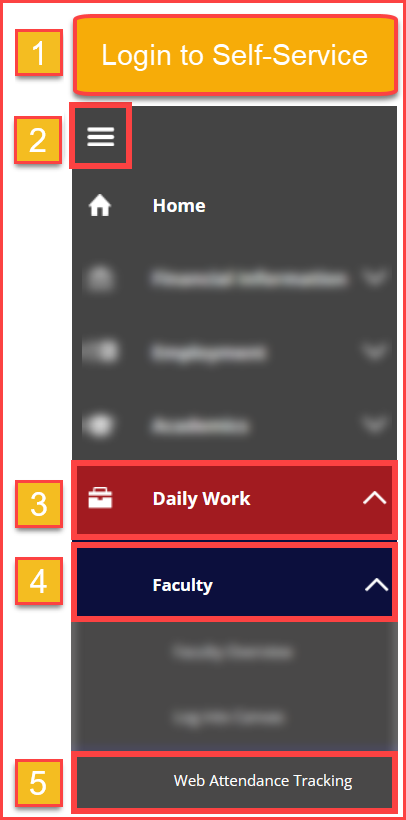
The link to Web Attendance Tracking is available in Self-Service under the Faculty menu in the left-hand navigation.
There will be no change in procedure with respects to entering in Positive Attendance hours.
(Web Attendance Tracking for entering in Positive Attendance (PA) is an external application unrelated to WebAdvisor. The link is merely provided in WebAdvisor for easy access.)
To access Web Attendance Tracking in Self-Service:
- Log into Self-Service
- Select the Navigation Menu icon
- Expand the Daily Work (briefcase icon
- Expand the Faculty submenu under Daily Work and
- Select Web Attendance Tracking from the links.
Grading
Under the Faculty menu, select the section that you want to view your grades. Your sections are arranged by term with the most recent terms towards the top.
Click on the Section Name to open the Section Details for that section. Then click on the Grading tab. By default, the Overview sub-tab will be open.
Grades you have posted – whether through WebAdvisor or Self-Service – will be displayed here.
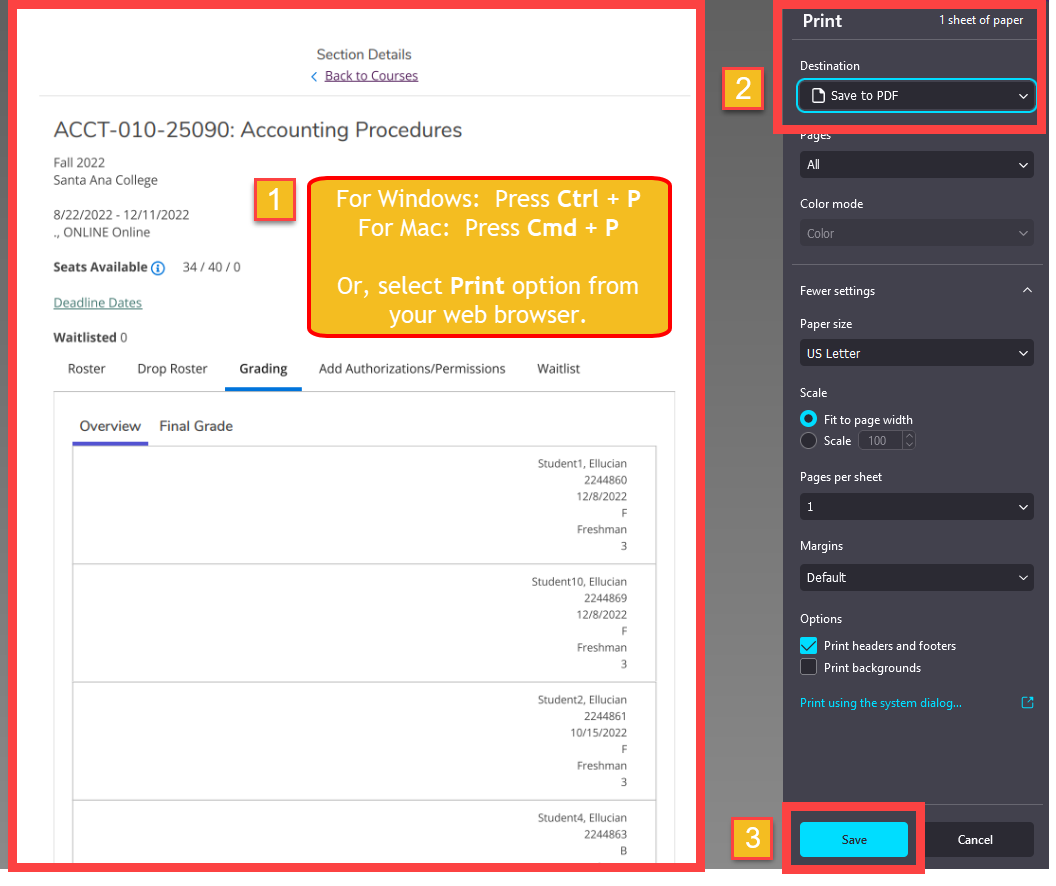
To save/print your grades in Self-Service, we recommend using Ctrl + P (Windows) or Cmd + P (Mac) to open the Print screen.
For the printer Destination, select Save as PDF.
This will save a PDF copy of the page you are viewing which you can send as proof of grade submission to your department.
Below is an example from a Windows computer using Firefox:
- Press Ctrl+P on the keyboard to bring up Print window.
- For Destination, select Save to PDF.
- Select Save to finish.
Please read the Faculty Grading Manual and reference this brief instructional video on how to grade in Self Service.
You may also contact ITS Help Desk for additional assistance.
Faculty Drops
You can find more information on how to drop students in Self Service for College credit classes or for non-credit Continuing Education classes here:
- Self Service Faculty Drop Manual for College Credit
- Self Service Faculty User Guide for Continuing Education - see pages 3 - 6 for drop instructions.
- Self Service Faculty Drop Manual for College Credit
- Self Service Faculty User Guide for Continuing Education - see pages 3 - 6 for drop instructions.
Self-Service Issues & Feedback
If you are encountering an issue using Self-Service, please refer to the list below to see if this issue has already been reported and to find the current status.
If your issue is not on this list, or to request further information, please reach out to our ITS Help Desk.
| # | Status | Issue | Description | Location | Notes |
|---|---|---|---|---|---|
| 1 | RESOLVED | Final Grading tab missing CE Spring | Grading | ||
| 2 | RESOLVED | Final Grade column missing from some CE Drop Rosters | Drop Roster | Contact A&R if you have this issue. | |
| 3 | NEW | False "Student could not be dropped" error with "See your advisor." warning | Self Service may be reporting a false error. See steps to confirm drop succeeded in Notes | Drop Roster | Check roster to confirm if drop succeeded. |
| 4 | NEW | False "Student could not be dropped" error without "See your advisor." warning | Self Service may be reporting a false error. See steps to confirm drop succeeded in Notes | Drop Roster | Check roster to confirm if drop succeeded. |
| 5 | SECT BUILD ISSUE | Drop roster not appearing if no census date for section | Drop Roster | Contact A&R if you have this issue. | |
| 6 | KNOWN ISSUE | Emailing students from Self Service includes dropped students | Vendor has a feature request to improve. | ||
| 7 | KNOWN ISSUE | Difficulty emailing students from Self Service. | Self Service uses email client on your PC. | Vendor has a feature request to improve. | |
| 8 | RESOLVED | Unable to email students who are also employees | Privacy restrictions updated to resolve this issue. | ||
| 9 | CAN'T CHG | Cannot drop when class is prereq of another | Must contact A&R to drop students from class that is a prerequisite for another class on student's schedule. | Drop Roster | Self Service does not |
| 10 | TESTING | Restricted sections show zero enrollments | Chairs cannot see enrollments for restricted sections like Dual Enrollment in their department. | Catalog | |
| 11 | RESOLVED | Negative seat counts | Self Service does not show negative seat counts currently if over cap. | Catalog | |
| 12 | KNOWN ISSUE | False "Student could not be dropped" error with "No valid rate table." warning | Self Service is reporting a false error due to bug affecting non-credit sections. | Drop Roster | Vendor has bug report for this issue. |
| 13 | NEW | Add ability to sort Roster tab by the various columns | Roster |
Faculty can use the following survey link to provide ITS with additional feedback about Self Service:
https://forms.office.com/r/iVPPGTKdT9
If you have encountered any issues using Self-Service, please reach out to our ITS Help Desk to open a support ticket.
I am having trouble using the "Email All" feature in Self-Service when emailing my class roster.
When you use the "Email All" feature in Self-Service, it will try to open the default mail client on the computer you're using.
If you're using a home computer or a non-District device, it may try to open your personal email account, or may not have any default mail client set up at all.
To resolve this issue, you can either set a default mail client for the computer or use Canvas to email students instead.
Your Canvas course will need to be set to Published status. If you just need to send one email you can temporarily set the course to Published, then compose and send the email in Canvas. As long as there has not been any grading done then you can set the course back to Unpublished status again. Select the link here to view the guide for publishing Canvas courses.
If you still want to use the "Email All" feature through Self-Service, then you would need a desktop email client program or app such as Microsoft Outlook.
Here are our suggestions for how to change the default mail app:
- To change what your default mail client is set as for Windows computers, follow the steps for how to Make Outlook the default program for email, contacts, and calendar.
- To change what your default mail client is for Macbook computers, follow the steps for how to Change the default web browser or email app on Mac.
- If you want to use Microsoft Outlook as your default mail client and need to install it, see our guide Microsoft Office365 Home Use for Faculty and Staff for installation instructions.
- If you were using Windows Mail app and it stopped working around April 2023, please see our FAQ for I use Windows Mail app from a home computer and lost connection to my school email. How do I fix this?
- If you were using Outlook desktop app and it stopped working around April 2023, please see our FAQ for In Outlook desktop app, I am constantly being prompted for a password. How do I get rid of this?
How do I access eForms (e.g., Absence forms, Time Cards, Budget Change, Status Change, etc?)
Employees may now access eForms in Self-Service!
This includes:
- Absence eForm link
- TimeCard, overtime and/or Comptime eForm link
- Blank Absence eForm link
- Blank Timecard eForm link
- Budget Change eForm link
- Transfer of Expenditures eForm link
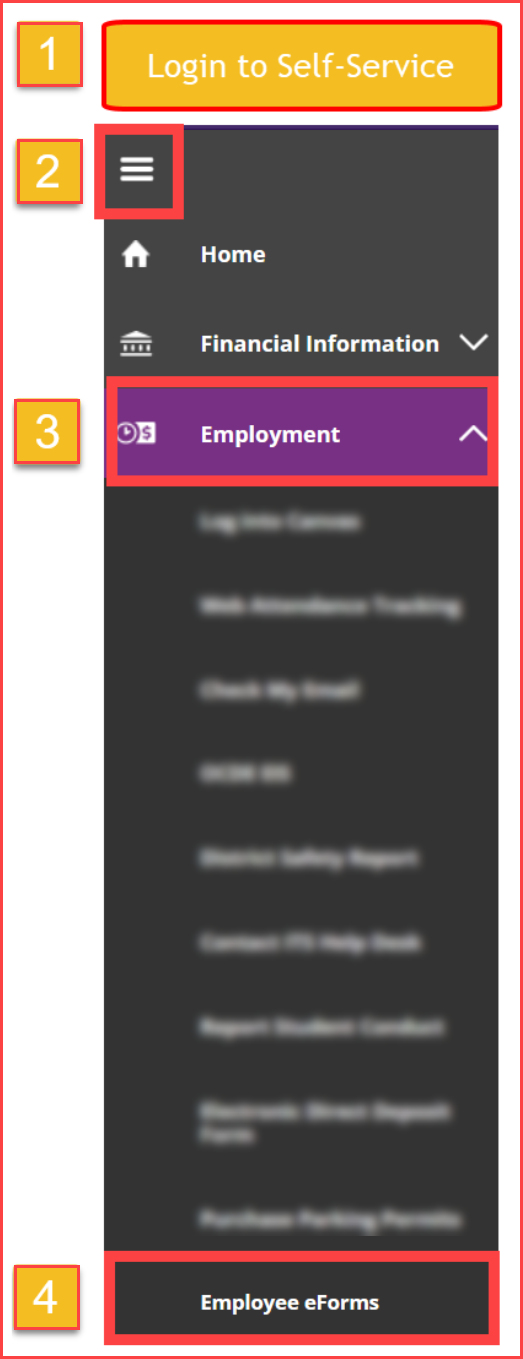
- Log into Self-Service (at sac.edu/selfservice or sccollege.edu/self-service)
- Navigation Menu icon, located on the top left corner (three lines)
- Employment menu
- Select Employee eForms
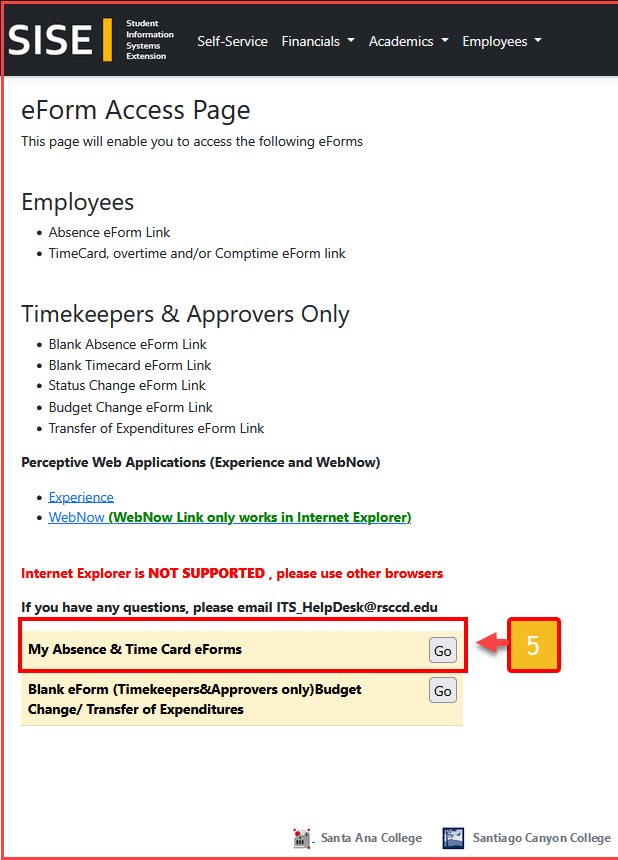
- On the eForm absence page, select "Go" forMy Absence & Time Card eForms"
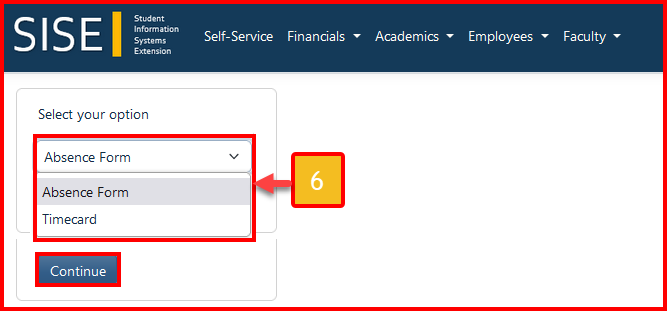
- Select either "Absence Form" or "Timecard" and select Continue