Account Lockout Troubleshooting
See our Account Lockout Troubleshooting guide below if you're getting locked out of
your account.
Need to make a password change?
- Go to rsccd.edu/changepassword to create a new password.
- Go to rsccd.edu/resetpassword to reset your password or retrieve your username.
Can't find what you're looking for here?
- If you're looking for help with Single sign-on, see our Single Sign-on (SSO) FAQs.
- If you're looking for help with your password, see our Password Troubleshooting FAQs.
Frequently Asked Questions (FAQs)
These are common symptoms that appear when your account is locked:
- When logging into a District computer, you'll receive an error saying "The referenced account is currently locked out and may not be logged on to."
- On Outlook desktop app or Outlook mobile app, you'll be repeatedly prompted with a credential screen asking for a password.
- On the Single sign-on (SSO) login page, there isn't a specific error for being locked out. You'll just continue to receive an error that says "Incorrect user ID or password. Type the correct user ID and password, and try again."
- We have a guide for how to troubleshoot this problem in our Single sign-on (SSO) FAQ for "I am receiving an error saying "Incorrect user ID or password. Type the correct user ID and password, and try again."
The most common reasons for getting locked out of your account include:
- Incorrect password attempts.
- Changing your password. If you recently changed your password, you may get locked out if there are devices, apps, and web browsers that are using the old password.
- Try waiting 15 minutes, and then log in again.
- If you recently changed your password, follow the Password Update Checklist below to review the saved passwords you have on your devices, apps, and web browsers. They may need to be updated.
- If you're still unable to login, please contact the ITS Help Desk.
Password Update Checklist
Use this checklist to update passwords associated with your Single Sign-on (SSO) login
after a password change.
This does not include ConferZoom or Zoom credentials. Zoom credentials do not use Single Sign-on (SSO) login. Go to Zoom.us Forgot Password site to reset your Zoom password.

We recommend restarting the computer, then logging in to verify your password works, especially after creating a new password.
If you are working remotely and using a laptop and just recently created a new password, the new password will not work for computer login until you are reconnected to the RSCCD network. Please login with your old password until you can return to campus.

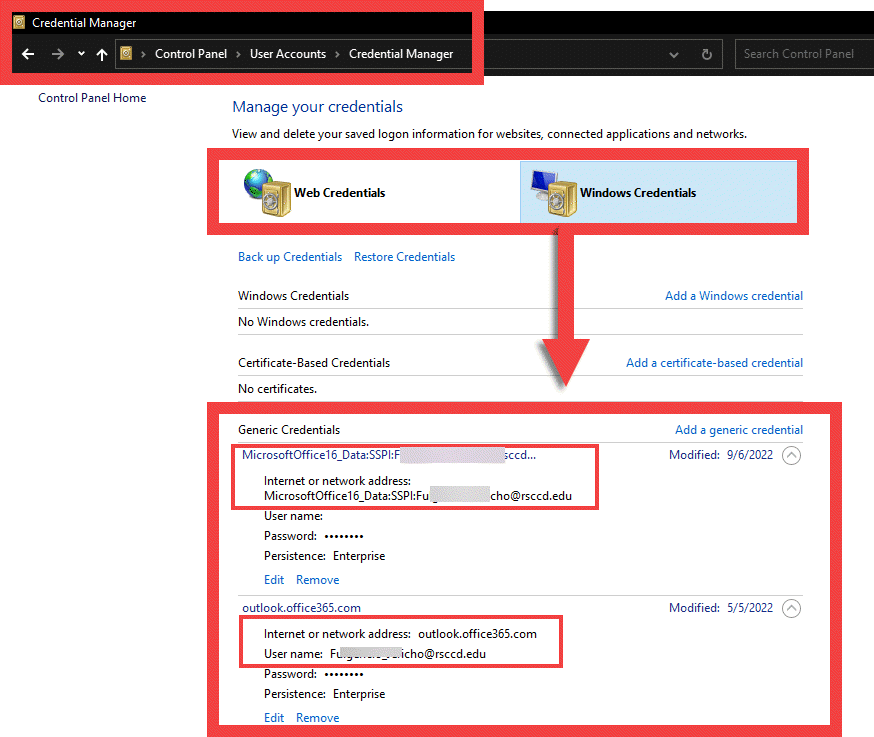
See Accessing Credential Manager
- To open Credential Manager, type credential manager in the search box on the taskbar and select Credential Manager Control panel.
- Select Web Credentials or Windows Credentials to access the credentials you want to manage.
- Select Edit to update the credentials.
- Select Remove to remove the credentials.

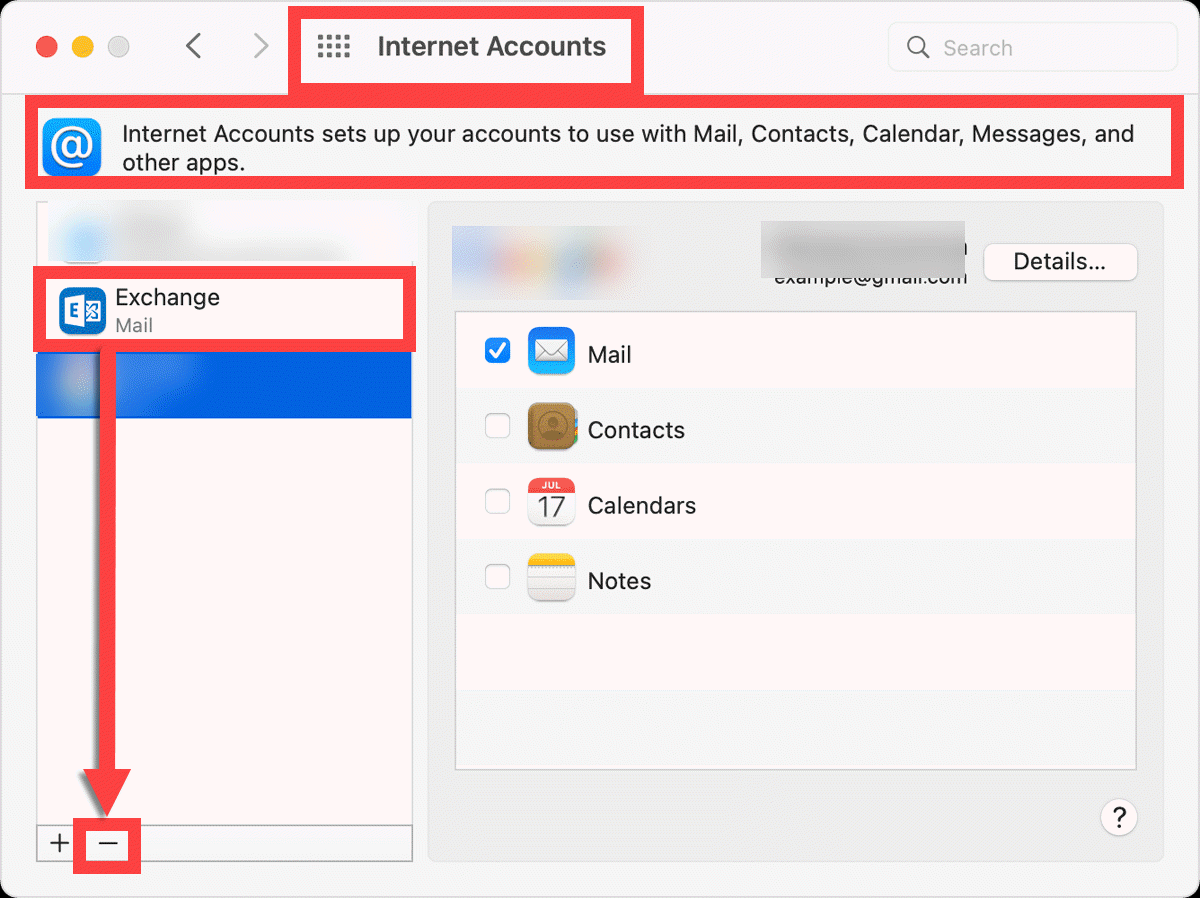
Internet Accounts
See Change Internet Account Settings on Mac.
- Choose Apple menu

- Select System Settings.
- Scroll down the side bar and select Internet Accounts

- Select any Exchange, Mail, or Calendar accounts tied to your email address or Single Sign-on username.
- Select the - button or Delete Account to remove the account.
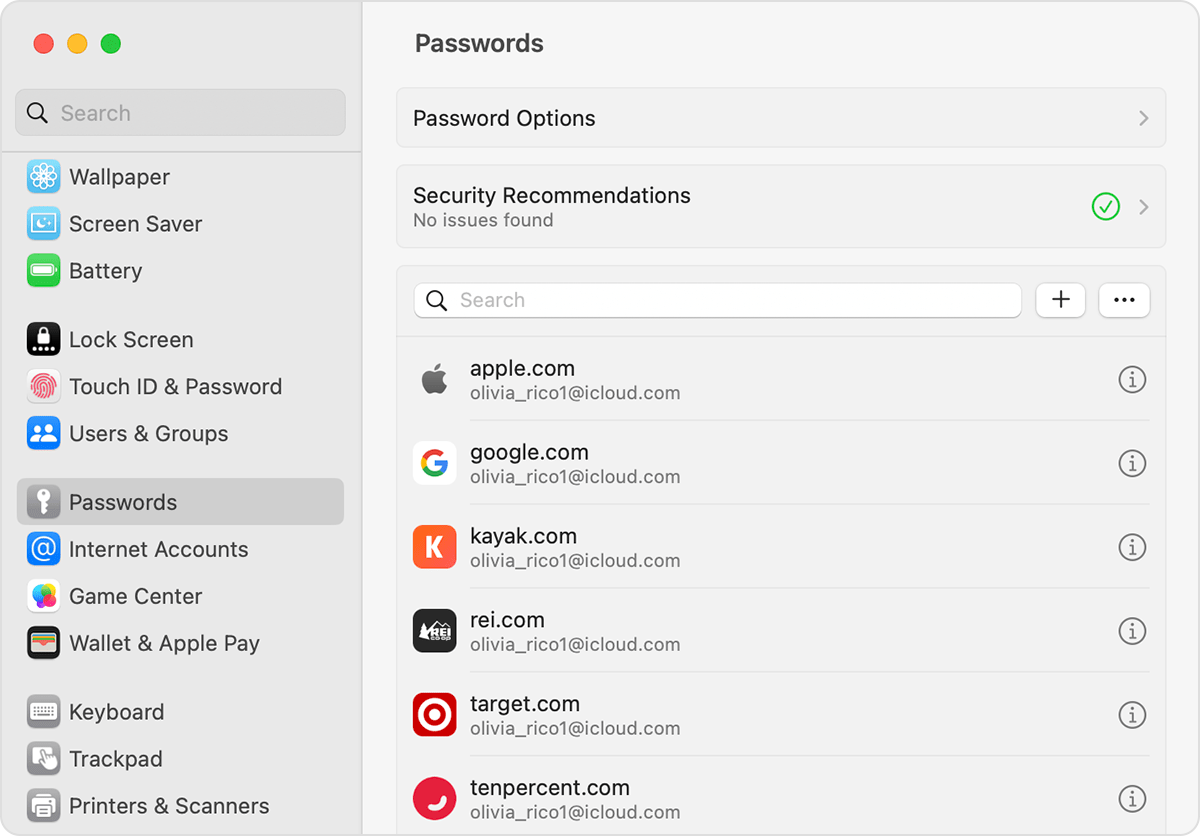
Passwords
See How to find saved passwords and passkeys on your Mac
- Choose Apple menu > System Settings.
- Click Passwords.
- Sign in with Touch ID, or enter your user account password.
- Select an app or website, then click the Show Details button.
- To delete a password, click Delete Password
- To update a password, change it and then click Save.
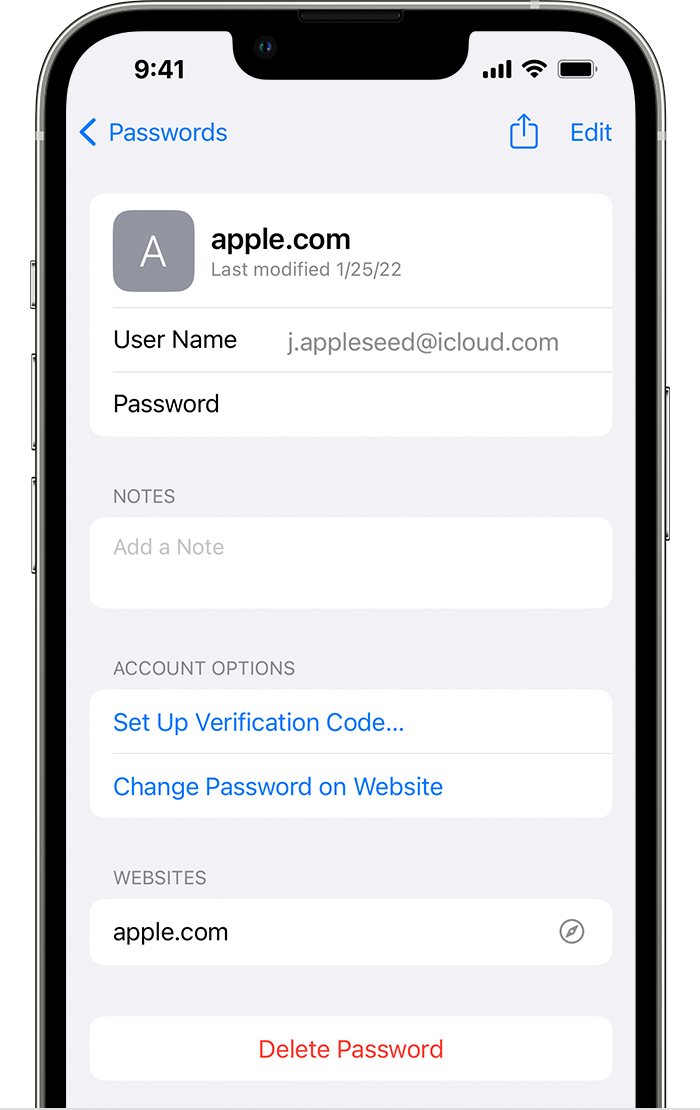
See How to find saved passwords and passkeys on your iPhone
- Tap Settings, then select Passwords.
- If prompted, authenticate with your Face ID or Touch ID, or enter your passcode.
- To see a password or passkey, select a website or app.
- To delete a saved pasword or passkey, tap Delete Password or Delete Passkey.
- To update a password or passkey, tap Edit.

See Email on your mobile device
Remove email from Apple Device:
- From the home screen, go to Settings.
- Select Mail, Contacts, Calendars or Mail.
- Select Accounts.
- From the list of Accounts, select your employee email account.
- Select Delete Account.
- To confirm, select Delete from My iPhone / iPad.
Remove email from an Android Device:
- Locate the Accounts feature on the phone.
- This is usually in Settings, but sometimes under Mail.
- From the list of Accounts, select your employee email account.
- Select Remove Account.
- You may receive a pop up saying "Removing the account will delete all of its message, contacts, and other data. Continue?". Select Remove Account again to continue.

For Windows computers, see Windows PC instructions or Accessing Credential Manager.
For Macbooks, see Change Internet Account Settings on Mac.
See Employee Wireless Network (Wi-Fi) Guide
Windows 10
- Select the Network icon in the lower-right corner of your screen.
- Select Network settings.
- Select Manage Wi-Fi settings.
- Select the network you want to forget from the list under “Manage known networks”
- Select Forget.
macOS and OS X
- Select System Preferences.
- Select Network.
- Select Wi-Fi from the list of network options at left, then select Advanced… at lower-right.
- Select the RSCCD.org wi-fi connection.
- Select the – button to remove it.
iOS (iPhone)
- Go to Settings > Wi-Fi.
- Select the RSCCD.org connection.
- Select Forget This Network.
Android
- Go to Settings.
- Navigate to Wi-Fi network list (sometimes called Wireless & Networks).
- Press and hold the RSCCD.org Wi-Fi connection.
- Select “Forget network” from the popup menu.
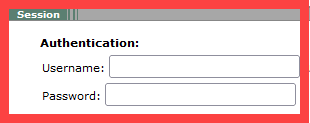
See Terminal Session User Setup Tips
- Login to the Remote Portal.
- Select Edit Terminal Services Session settings.
- Under Authentication, either remove the username and password, or update the password field.
- When done, select Save Changes at the bottom of the page.



Select the "Account" icon on top right corner of any Adobe app > Sign Out. Then Sign-In again using "Company or work account" option.



For Macbook, see How to find saved passwords and passkeys on your Mac
For iPhone, see How to find saved passwords and passkeys on your iPhone