Clear Web Browser Data (History, Cookies, and Cache)
Frequently Asked Questions
This error usually indicates an issue with an outdated cookie or cached file on the web browser you're using. Follow the steps for How to Clear Cache & Cookies, then try the login again. Alternatively, you can try from a different web browser.
This error usually happens if you have an expired login session when using Single sign-on (SSO).
If you receive this error continuously, lease try clearing the cache/cookies from your web browser. Then close all the browser windows and try the login again.
Here is our guide for How to Clear Cache & Cookies. You may have to set the time range to “All Time” or “Everything”.
This error happens when accessing the Web Attendance Tracking website using an outdated link that doesn't contain an extra front slash "/" at the end of the website address.
Please follow the directions for How to Clear Cache & Cookies, then close all of your browser windows and try accessing directly from this website address:
If you don't want to clear the cache and cookies, you could try the following. Please note these suggestions may not offer a permanent solution to the issue you're experiencing but can serve as a workaround or alternative.
Use a different web browser
For example, if you normally use Google Chrome, try Microsoft Edge or Apple Safari browser.
Open an incognito or private window
When you open an incognito or private window in your web browser, it will behave as if there is no saved cache/cookies for the websites you're visiting.
- On Google Chrome:
- Select the three dots on the top right corner to open Customize and control Google Chrome, then select New Incognito Window.
- Or, press Ctrl + Shift + N on your keyboard.
- On Mozilla Firefox:
- Select the three lines on the top right corner to Open application menu, then select New Private Window.
- Or, press Ctrl + Shift + P on your keyboard.
- On Microsoft Edge:
- Select the three lines on the top right corner for Settings and more, then select New InPrivate Window.
- Or, press Ctrl + Shift + N on your keyboard.
- On Apple Safari (for Mac):
- In the Safari app on your Mac, choose File > New Private Window, or switch to a private window that’s already open.
Restart your device
Sometimes restarting your device will also help to clear errors you're experiencing with cache/cookies on the web browser.
How to Clear Cache & Cookies
NOTE: The steps below show you how to clear ALL of the browsing data from your web browsers,
including the browsing history, cookies, and cached images and files.
Usually, when troubleshooting a web browser problem (e.g., a page does not load correctly), you only need to clear the cookies and cached images and files.
- Open Chrome.
- Select the 3 vertical dots, on the top right corner (for "Customize and control Google Chrome").
- Select More Tools.
- Select Clear browsing data.
- Alternatively, press Ctrl + Shift + Delete on your keyboard.
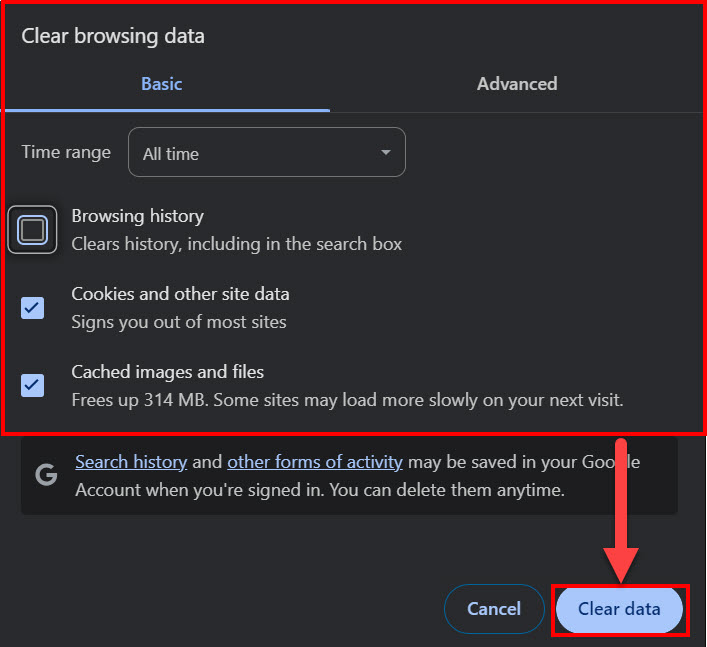
- In the popup that appears (for "Clear browsing data"), select the Time range. Select the checkboxes for Cookies and other site data, and Cached Images and files.
- NOTE: You can leave "Browsing history" unchecked.
- Select Clear browsing data. Then the pop up window will close.
-
Close all Chrome windows, and restart Chrome.
- Open Firefox.
- Select the 3 vertical lines on the top right corner (for "Open Application Menu").
- Select History, then Clear recent history.
- Alternatively, press Ctrl + Shift + Delete on your keyboard.
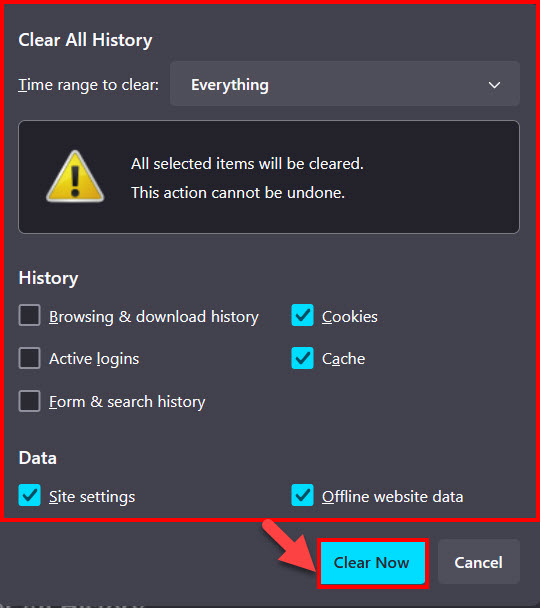
- In the popup that appears (for "Clear All History"), select the Time range to clear. Under "History", select the checkboxes for Cookies and Cache, Under "Data", select Site settings and Offline website data.
- Select OK. Then the pop up window will close.
-
Close all Firefox windows, then restart Firefox.

- Open Safari.
- In the menu bar on the top of the screen, select History.
- At the bottom of the menu that appears, select Clear History...
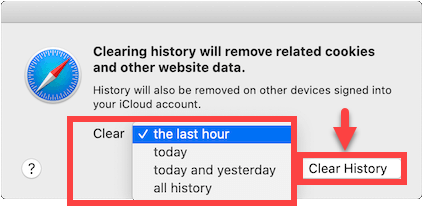
- In the pop up window that appears (for "Clearing history will remove related cookies and other website data."), select an option to Clear. Your choices are the last hour, today, today and yesterday, or all history.
- Select Clear History. Then the pop up window will close.
- Close all Safari windows, then restart Safari.
- Open Microsoft Edge.
- In the top right corner, select the 3 horizontal dots (for "Settings and more").
- Select Settings.
- In the new window that appears (for "Settings"), select Privacy, search and services.
- Under Clear browsing data, select Choose what to clear.
- Alternatively, press Ctrl + Shift + Delete on your keyboard.
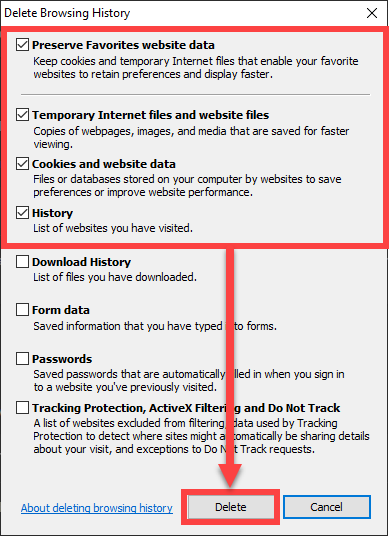
- In the pop up window that appears (for "Delete Browsing History"), select Preserve Favorites website data, Temporary Internet Files and website files, Cookies and website data, and History.
- Select Delete. Then the pop up window will close.
- Close all Edge windows, then restart Microsoft Edge.

- Open Internet Explorer.
- In the top right corner, select the gear icon (for Tools).
- Select Safety, then Delete browsing history...
- Alternatively, press Ctrl + Shift + Delete on your keyboard.
- In the pop up window that appears (for "Delete Browsing History"), select Preserve Favorites website data, Temporary Internet Files and website files, Cookies and website data, and History.
- Select Delete. Then the pop up window will close.
- Close all Edge windows, then restart Microsoft Edge.